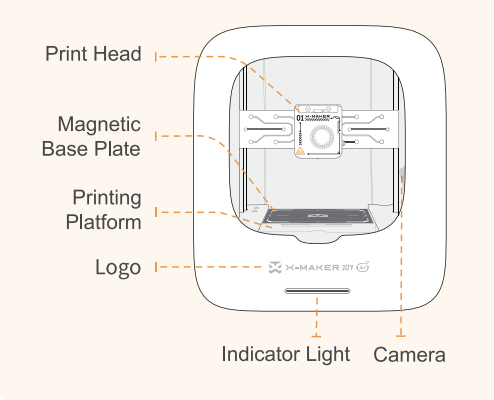
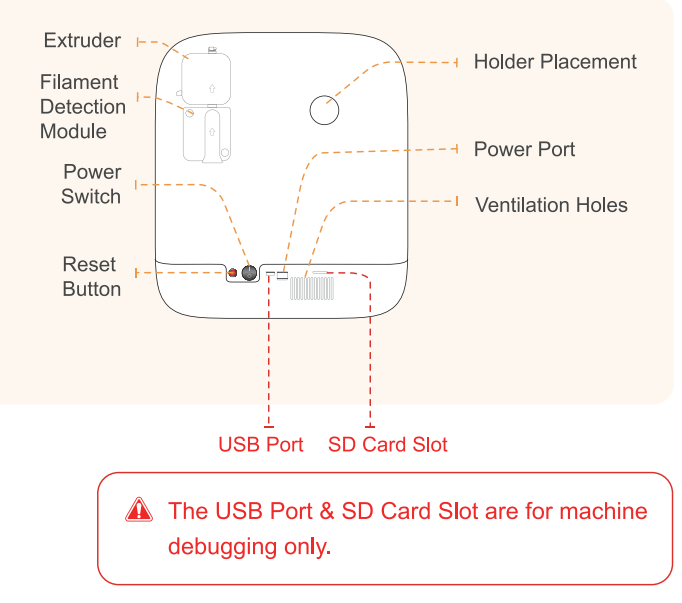
¶ Knowing Your X-MAKER JOY AI+
 |
 |
¶ Quick Start Guide
Welcome to your new X-MAKER JOY AI+: the easy-to-use and reliable 3D printing solution.
The X-MAKER JOY AI+ is a kid-friendly 3D printer with professional printing quality, one-click printing feature, and a rich selection of models. The Quick Swap Nozzle, pre-calibration and pre-leveling settings, and build-in camera lower the operation time and ensure the greatest peace of mind.
This section will take you through the steps required to set up your new machine and get started with your first print. Check out the X-MAKER JOY AI+ Quick Start Guide.
¶ 1. Unboxing and Installation
Due to constant version iterations, the actual accessories (such as protective foam, the through pin, tools, etc.) in the box might be slightly different from those shown in the unboxing video or the pictures in the article. Please refer to the actual package received.
Follow the steps below to properly unpack and install your new X-MAKER JOY AI+ 3D printer.
¶ 2. Network Connection (2.4GHz Wi-Fi)
The X-MAKER JOY AI+ can connect to a network via Wi-Fi. Connecting the printer to the network will allow you to manage the printer and printing.
To connect your printer to a wireless network, you will need a smartphone or tablet. Follow the steps and pop-ups to connect the printer to your local Wi-Fi network.
Note: Your network must be operating on a 2.4GHz frequency. If you have a dual-band router, you will have to isolate the 2.4GHz frequency (It is recommended that you contact the router after-sales support for help).
Network connection (2.4GHz Wi-Fi)
¶ 3. Loading Filament
The X-MAKER JOY AI+ comes with a spool of PLA Silk filament (200g). This material offers multiple colors and is ideal for a first print.
Note: The X-MAKER JOY is only compatible with PLA filament.
You may also need Filament Replacement.
¶ 4. Starting a Print
You are now ready to start your first print. There’s no need to upload a model manually, use a 3D slicer, level the bed, or set the temperature. Simply tap the screen, and you’ll soon have your 3D print!
¶ Features
This section contains the most user-friendly features of the X-MAKER JOY AI+. Once the printer is connected, you can select the feature you need and simply tap the screen in the XMAKER app, and it will be carried out. Here, you can learn about the operation of the X-MAKER JOY AI+ and XMAKER app, and make the most out of your 3D printer.
¶ Bed Calibration and Leveling
The X-MAKER JOY AI+ is ready to print from the factory, with no calibration or leveling needed. However, if you notice your prints warping or being displaced, you can follow these steps to calibrate or level the bed.
¶ Filament Detection & Filament Tangle Detection
When the app notifies you of a filament break/tangling, follow these steps:
Filament Detection & Filament Tangle Detection
¶ Filament Replacement
When the printing filaments are almost used up, or you want to change to another color, or for other equipment maintenance purposes, you will need to replace the filaments. To change a spool, you’ll unload the current one first, then load a new one. Here's a detailed step-by-step guide for replacing filaments on your printer.
Encountered a blocked nozzle? Poor print quality? Maybe you need to unclog the filament tube, unclog the nozzle, a quick swap nozzle or bed calibration and leveling.
¶ How do I adjust the print temperature
Here is how do I adjust the print temperature.
¶ How do I print a model designed by myself?
How do I print a model designed by myself? If you design the model with other design software, upload it to the XMAKER app via DESIGN - Import file, then tap Print.
¶ Indicator Light Status
X-MAKER JOY AI+ indicator light can show different colors to indicate different statuses. Refer to this guide to recognize each status.
¶ Naming Your Printer
For personalizing your printer, you can change the name of your X-MAKER JOY AI+. This is a helpful feature to help differentiate multiple printers.
¶ Printing TOYS
After the test print, you can print whichever models you like. For example, you can view various models and print them out in XMAKER app under THINGS. By following these steps, you can turn 3D models into tangible objects.
¶ Quick Swap Nozzle
When the nozzle is blocked or the print quality is poor, replacing the nozzle is necessary. This guide illustrates how to replace the nozzle. The steps are simple and help reduce maintenance costs.
¶ Searching for Printers
If the printer was once connected to your phone, even if you restart your printer and phone, you can connect it without connection steps simply by searching for it in your app. Here is how.
¶ Timelapses
X-MAKER JOY AI+ comes with a built-in monitoring camera, allowing you to monitor the printing progress and check for any abnormalities through the App’s real-time video. Follow these steps to access the time-lapse video.
¶ Troubleshooting
This section covers troubleshooting issues and solutions for the best assistance.
¶ Changing Pneumatic Fitting
This is a guide on how to change the pneumatic fitting/connector.
¶ Changing Print Head
The steps to change the X-MAKER JOY AI+ print head are as follows.
¶ Difficulties Encountered During Filament Feeding
Before feeding filaments, please ensure there are no filaments left in the tube. If there are any, refer to this article to remove the residual filaments or unclog the filament tube.
If you find that the filament tip gets stuck on the extruder and cannot be inserted into the tube, follow these steps:
Difficulties encountered during filament feeding
¶ Disassembly of the filament detection module
Here is the disassembly of the filament detection module.
¶ Filament Tube Unfixed
When printing, the tube may loosen and move upward, affecting filament feeding and printing. Follow these steps to resolve this issue.
¶ Hard to Remove Bed Adhesion of Prints
If your prints are difficult to remove from the bed, try these solutions.
Hard to remove bed adhesion of prints
¶ Nozzle Clogged
When no filament comes out of the nozzle or it comes out too finely, it usually indicates that the nozzles is clogged. Follow these steps to unclog the nozzle.
¶ Poor Printing Quality
If your prints have gaps between layers or are incomplete, try these solutions.
¶ Printhead Disengaged
Sometimes during shipping, the printhead may come loose from its groove due to vibration. Here's how to reattach it:
¶ Troubleshooting Wi-Fi Connectivity Issues
If you encounter Wi-Fi connection failure, check the printer’s indicator light. The solutions are provided according to different indicator lights.
Troubleshooting Wi-Fi connectivity issues
¶ Unclogging the Filament Tube
If the filament is not replaced in time before it runs out, it will remain in the filament tube, affecting further printing. Follow these steps to unclog the filament tube.
¶ Unplugging Tube
This is a guide on how to unplug the tube.
If you have any further questions, please contact service@aoseed.com for assistance.